Have you ever been working in Windows and ended up with a program freezing and causing the all your desktop icons to disappear? In most cases everything disappears, including the Start button and taskbar.
Normally in order to get out of this situation, you have to restart your computer and hope that whatever caused Windows to crash goes away. The icons can be missing from your desktop for two reasons: either something has gone wrong with the explorer.exe process, which handles the desktop, or the icons are simply hidden.
Usually it’s an explorer.exe problem if the entire taskbar disappears also. In this article, I’ll mention a couple of ways you can fix either of these issues.
Note: If you are simply trying to get the Computer, Control Panel, Recycle Bin, Network or User’s Files icons back, then you just need to right-click on the desktop, click Personalize, click Change desktop icons on the left hand menu and then check the icons you want on the desktop.
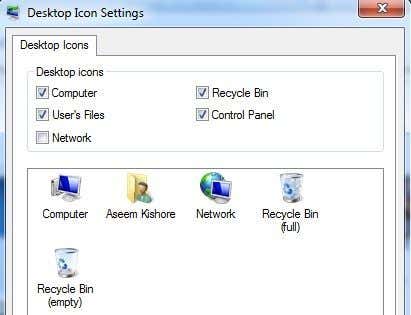
Show Desktop Icons
The latter method is easier to fix. In Windows XP, right-click on the desktop and choose Arrange Icons By. Next check the Show Desktop Icons item.

In Windows 7 and higher, you right-click on the desktop and choose View and then make sure Show desktop icons is checked.
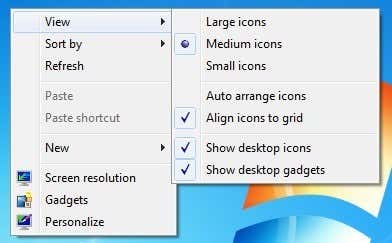
Pretty simple! But as mentioned earlier, that’s normally not the reason why your desktop icons are missing. The second method involves restarting the explorer process without having to restart Windows.
Restart Explorer.exe
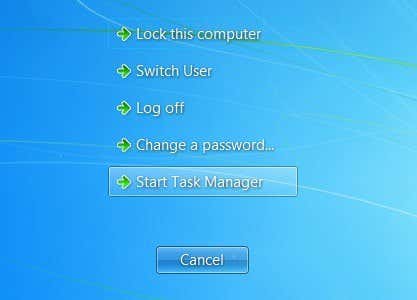
Press CTRL + ALT + DEL and click on Task Manager. In Windows 7 and higher, you click on the Start task manager link at the bottom.

Now in the Task Manager, you want to click on File and then New Task (Run). Make sure you are on theProcesses tab.
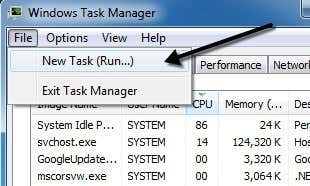
In the Open box, go ahead and type in explorer.exe and click OK.
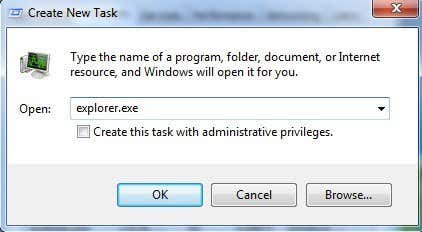
That’s it! This will cause the Explorer process to be restarted and hopefully you will get your desktop icons, taskbar, and Start button back! Note that if the explorer.exe process is already running, then running this task will just open a new Explorer window on your desktop.
Run System File Checker
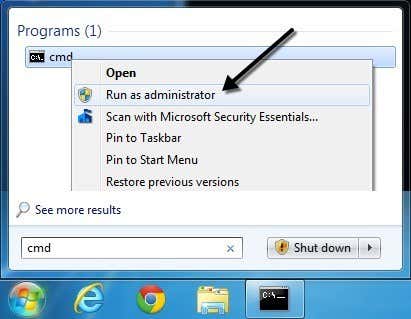
If the two methods above did not work, there may be some system files that have become corrupt and the problem won’t go away until the files are repaired. The best way to do this is to run System File Checker, which will check for missing and damaged Windows system files and repair them. You can run it by going to Start, Run, typing CMD and then typing sfc /scannow.

You’ll need to make sure you run the command prompt as an Administrator. When you type in Run after clicking on Start, right-click on cmd and choose Run as Administrator.
Disable Sleep Mode
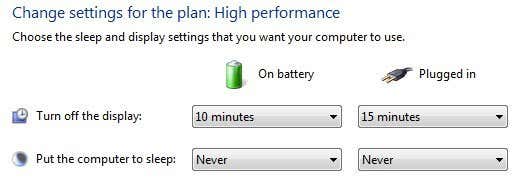
Another more rare reason your desktop icons might disappear is because of the monitor. If you have noticed that this issue occurs after your monitor goes to sleep, you should change the settings so that the monitor does not go to sleep.
I’ve seen this issue happen on several full HD monitors and I’m not 100% sure what the issue is. Manually turning on and off the monitor seems to make the issue go away, but it’s more on an inconvenience. Your best bet is to update the graphics card driver and install the latest Windows updates.
You can get to the display setting by going to Power Options from the Control Panel and then clicking onChange plan settings.
Rebuild Icon Cache
Windows keeps an icon cache and if this file becomes corrupt for some reason, some or all of the shortcuts on your desktop may disappear. You can delete this file and then restart the computer to rebuild the cache and hopefully get all your icons and shortcuts back.
To do this, open Explorer, click on Organize and then click on Folder and search options.
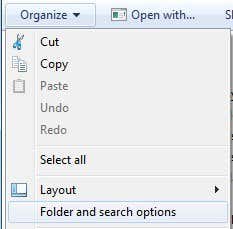
Click on the View tab and then select the radio button that says Show hidden files, folders and drives.

Now navigate to the following directory in Explorer:
C:\Users\(username)\AppData\Local
You should see a file called IconCache.db inside that folder. Go ahead and right-click on it and chooseDelete.
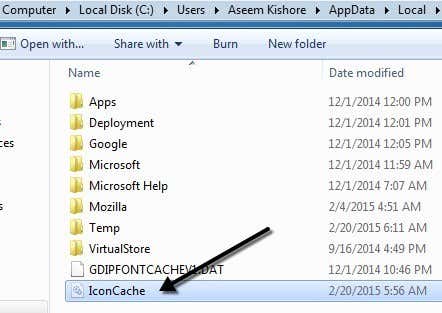
Go ahead and restart the computer and see if that fixes your problem. The cache will be rebuilt when the computer restarts. You can also go back and check that the size of the file is smaller after the restart. If not, restart a couple of more times until you see the size is smaller.
If none of the solutions above have worked, then you might have to take more drastic actions. One thing you can try is to create a user account, which will create a new user profile when you log in. There are many times when user profiles become corrupt and the only way to fix the resulting issues is to create a new profile. If you have any questions, post a comment. Enjoy!


It's a great thing that I found you, keep writing such stuff, which helps readers to evaluate themselves.If you facing any problem regarding The Belkin Router Firmware hit in it or For more information you can call us on our Toll-free No.+1-888-633-7151
BalasHapus
BalasHapusI just read through the entire article of yours and it was quite good. This is a great article thanks for sharing this information. I will visit your blog regularly for some latest post.
Also, visit the blog posted by me.
HP OfficeJet Pro 8600 0xc19a0020 Printer Error
Thanks for sharing this post , We are an experienced third party technical support provider, available round the clock to offer online technical support services for Epson printer users. If you’re experiencing Epson error code 0xf1 problem, you can call certified printer experts to get unlimited technical support or help. Our live phone support is open round the clock to provide unlimited support or help for users.
BalasHapusFor printer setup :- Epson wireless printer setup
for Error issue :- Epson printer in error state
Epson error code 0x97
offline issue :- Epson printer offline
epson printer not printing
Thanks for sharing this post , We are a certified and independent third party technical support service provider, offering live technical support services for brother wireless printer customers. If you’re looking help for brother wireless printer setup, our printer experts are available 24/7 to help you remotely.
BalasHapusbrother printer setup
error code 2147500037
brother printer driver
Brother printer offline
brother printer in error state
printing issue :- brother printer not printing
Really very happy to say, your post is very interesting to read. I never stop myself to say something about it. You’re doing a great job. Keep it up.
BalasHapusbrother scanner
brother control center
fix brother printer offline
setup brother printer wifi
why is my brother printer not connecting to my mac
Update brother printer driver
To proceed with Tenda Router setup, you are supposed to follow and apply few important instructions. To proceed, you must follow the steps like first of all you are supposed to get the Tenda N301 wireless N300 Router, and then you can connect with a power adapter. Now, you must connect the ethernet cable from the computer to the router output slot. Now, you should connect the wired LAN broadband connection to the router input slot. Now, you should switch on the power supply. By applying the steps one can simply resolve the issues and proceed with the on screen instructions.
BalasHapus